 A community
An actionable issue contains one observable failure, the smallest reproduction you can share, and enough environment detail for someone else to repeat it.
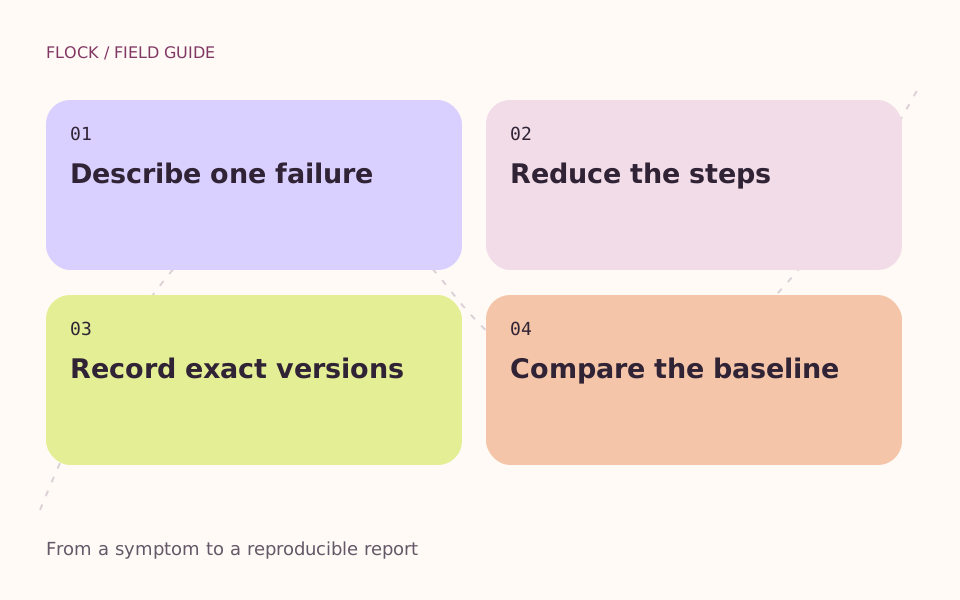
Describe one failure → Reduce the steps → Record exact versions → Compare the baseline.
First establish whether the failure occurs in upstream Flutter, the Flock candidate, or both. Do not label a problem a fork regression before making that comparison.
Reduce the case
Remove unrelated screens and services from a separate reproduction project. Keep the smallest setup that still fails. If removing a dependency changes the failure, document that dependency rather than hiding it.
State expected and actual results
Describe what you expected, what happened, and the exact action that separates the two. “Does not work” is not a reproducible outcome. Include the first relevant error, not an entire unrelated log.
Identify the environment
Record repository, revision, Flutter/Dart versions, operating system, target device and mode. Redact home-directory names, tokens, private repository URLs and personal data from shared output.
Compare before escalating
Run the same case against the baseline and candidate when available. Record a missing comparison as not tested. Search existing upstream and Flock issues, then link related reports.
Use the repository’s template
Open the current Nest issue chooser and read the bug or feature template. This page does not submit a ticket or reserve a response time. Keep a local copy of the reproduction and test record.
A complete synthetic example
Title: Focus returns to a removed field after closing a dialog
Environment: repository and exact revision recorded in the attached trial log
Target: desktop, keyboard navigation, debug mode
Steps: Open dialog; remove the focused row; close with Escape.
Expected: Focus returns to the dialog opener.
Actual: No visible control receives focus.
Baseline: Reproduced on the recorded baseline.
Candidate: Not yet tested.
Reproduction: A minimal project with only the dialog and row removal.
Upstream issue: Add the real issue URL after checking for duplicates.
This is a reporting example, not a confirmed Flutter bug. Use the local issue brief to organise your own evidence, then review it before sharing. For the current destination, use Nest’s issue chooser. A feature request should explain the user task and maintenance trade-off rather than claim a failure.
Sources & further reading
Read the original project guide
Source snapshot: January 2025. Historical commands are retained for context, not claimed as a tested installation procedure for 2026.
When you think that a bug should be fixed, or a feature should be added to Flock, the process begins with filing an issue ticket. This guide describes how.
1. Try filing with Flutter first
Flock is a pressure release valve for Flutter. This means that the best place for a bug fix, and a feature, is Flutter, itself. Before filing an issue with Flock, it's critical that you first file an issue with Flutter. Only if the Flutter team is unable or unwilling to address your issue should you file a ticket with Flock.
2. File a ticket for Flock
Locate the existing Flutter ticket that you think the Flock team should handle. You'll need that when filing an issue ticket for Flock.
Open a new ticket in the Nest repository.
The Nest repository is used both for Flock tickets, and Nest tickets.
When filing your issue, use one of the existing issue templates. One template is available for bugs, and another template is available for features. Be sure to link to the original Flutter ticket in your issue. Also, please carefully read each section in the template, and provide any information that isn't available in the original Flutter ticket. Don't forget to choose a good title!
3. Wait for triage and analysis
The Flock team will likely take multiple passes over your issue ticket.
First, the Flock team will check your issue for compliance with requirements. To avoid losing valuable time, please make sure you've provided all relevant information. The Flock team will also categorize the area of Flutter where your ticket applies.
Second, once the issue appears to have all relevant information, the Flock team will decide whether they think this bug fix or feature belongs in Flock. This includes consideration of maintenance burden. This decision might require further conversation with you. Sometimes, this decision will happen very quickly, other times, this decision might take some time for research.
4. Wait for the fix
Once the Flock team decides that your change belongs in Flock, the team will prioritize it and begin to look for available labor to take care of it.
Nobody is paid to work on Flock. We pull labor from charitable and dedicated members of the Flutter community. Please set your expectations accordingly. Stay tuned to the issue ticket for updates.
Escape hatch
It's possible that even the Flock team is unable to deliver on your needs in a timely manner. In that case, Nest provides tools to make it easier for you to fork Flutter, yourself. With your own fork, you can solve your specific issue, on your schedule.
Go deeper on this task
- Reduce a Flutter failure without losing the trigger
A controlled method for turning a large application failure into a small shareable reproduction.
- Trace the first useful Flutter error
Read a failure from the triggering action through the relevant exception and stack, without hiding the original evidence.
- Share diagnostic logs without exposing private data
Prepare a minimal, consistently redacted Flutter or Flock diagnostic record while preserving the facts needed to reproduce the failure.