 A community
Start with a record of the SDK that already builds your app. Then evaluate Flock in a separate project checkout with an explicit repository and revision.
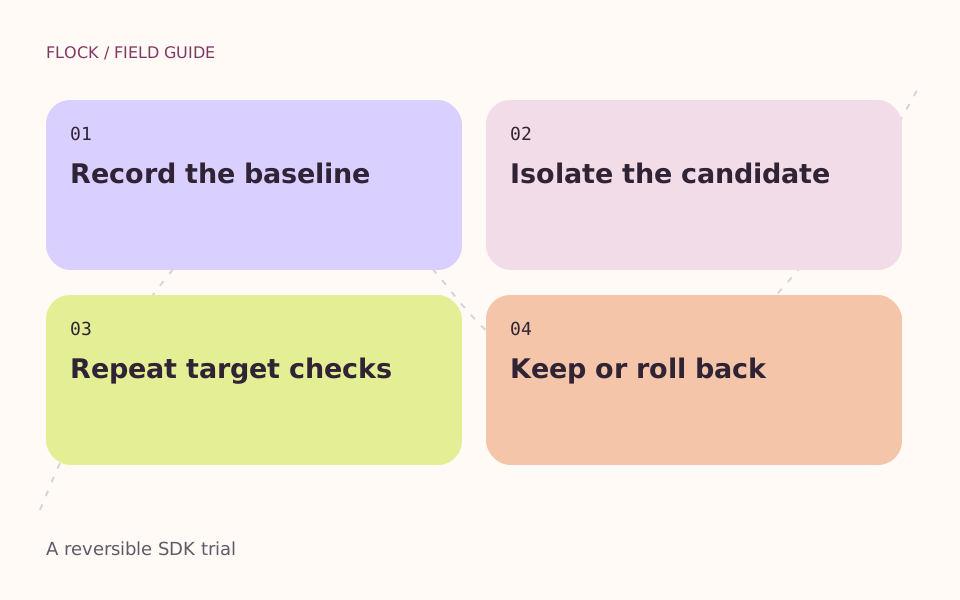
Record the baseline → Isolate the candidate → Repeat target checks → Keep or roll back.
Flock is a community fork of Flutter. Nest contains tooling for maintaining that fork. A working Flutter app does not need a fork simply because one exists: the useful reason to evaluate one is a specific change you can test.
Record the working environment
In the project that currently builds, capture the Flutter version and doctor output. Note your target, operating system and package lockfile. Keep this baseline before changing the SDK.
Choose the repository deliberately
The Flock project now links to join-the-flock/flock. Its 2024 documentation used a different GitHub organisation. Read the current repository and the FVM fork documentation before selecting a ref.
Isolate the trial
Use a separate checkout and a project-specific SDK selection. Do not delete a shared SDK cache just to follow an old article. Save the previous configuration and record how you will select it again.
Prove the change
Reproduce the same case with the baseline and candidate. Record analysis, tests and the actual target build separately. A successful version command proves which SDK ran; it does not prove that your app works.
Keep or roll back
Keep the candidate only when the intended change passes and the checks you selected for your app also pass. Retain both environment records and a repeatable way to select the previous SDK.
flutter --version
flutter doctor -v

# In the trial checkout, with the intended SDK selected:
flutter analyze
flutter test
# Build the platform your app actually ships, for example:
flutter build web
A configuration you can inspect
This is the project-specific repository pattern in the Flock documentation. master is a moving reference, not a frozen release. Confirm that the ref exists in the selected repository and check the installed revision after using your installed FVM version.
{
  "flutter": "master",
  "flutterUrl": "https://github.com/join-the-flock/flock.git"
}
Use the configuration inspector to spot missing values and moving refs. It reads text locally; it does not install FVM, contact GitHub or resolve a revision. For a complete trial record, follow the SDK evaluation worksheet.
Reading the original instructions
The source snapshot below preserves the earlier setup guide. Its 2024 version output and cache-removal advice describe that period. They are not a current compatibility statement.
Sources & further reading
Read the original project guide
Source snapshot: January 2025. Historical commands are retained for context, not claimed as a tested installation procedure for 2026.
Flock is Flutter+ • Flock is a fork of Flutter. Flock stays up to date with Flutter, and also adds new community features.
Configure your Flutter project to use Flock.
For now, Flock is just a direct copy of Flutter. We're working on smoothing out the
synchronization process on GitHub. We encourage you to start using Flock, which should exactly match Flutter's current master branch. If you run into any difficulties, please file an issue with us so we can fix it!
Install FVM
Flutter Version Manager (FVM) let's you install and use multiple versions of Flutter on the same machine. To use Flock, start by installing FVM.
Existing FVM Installation
Because of the way that FVM identifies Flutter versions, if you've already installed Flutter master with FVM, you'll need to delete that version before using Flock.
To delete an existing version, locate your FVM cache directory, and then delete the subdirectory called "master".
Configure FVM for Your Project
Select a Flutter project where you'd like to use Flock. In that project, create a new file called .fvmrc at the root of the Flutter project.
Configure .fvmrc to use Flock:
{
  "flutter": "master",
  "flutterUrl": "https://github.com/join-the-flock/flock.git"
}
Install Flock
Open a terminal at your project directory and run fvm flutter --version. FVM should notify you that "Master" is not installed, and then prompt you to install it.
Flutter SDK: Channel: Master is not installed.
? Would you like to install it now? (y/n) › yes
Select "yes" to install the Flock version of Flutter to your FVM cache.
Verify Flock Installation
To verify that your Flock installation worked, run fvm flutter --version. Ensure that your Flutter git URL points to https://github.com/join-the-flock/flutter.git.
Flutter 3.27.0-1.0.pre.200 • channel master • https://github.com/join-the-flock/flock.git
Framework • revision 452ef96537 (16 hours ago) • 2024-10-22 12:37:14 +0000
Engine • revision e6856502b5
Tools • Dart 3.7.0 (build 3.7.0-47.0.dev) • DevTools 2.40.1
Using Flock
You're now setup to use Flock! Run all of your usual Flutter commands through FVM.
fvm flutter --version

fvm flutter pub get

fvm flutter run

fvm flutter buildetc.Within your project, FVM commands will be sent to the Flock version of Flutter.
Go deeper on this task
- Which Flutter SDK is actually running?
Trace a terminal, IDE and FVM invocation to the SDK used in a Flutter or Flock investigation.
- FVM repository selection without cache guesswork
Distinguish a project SDK selection, repository URL and cached checkout before evaluating Flock.
- Roll back an SDK trial with the baseline intact
Restore a recorded Flutter project selection and verify it without deleting unrelated SDKs or application work.